
How signing works on YouKont
On YouKont every contract starts from a template: a PDF on which you already mapped the dynamic fields (name, amount, date, signature). When you need a customer to sign, you generate a contract from the template, fill in the data and send it for signature by email.
The recipient gets a personal link, opens the PDF in the browser, fills in the fields you left for them and signs with finger or mouse. You get notified as soon as the contract is signed and find the final PDF, with an audit trail (IP, timestamp, device), archived under the right customer.
Before you start
- A template that is already mapped and published. If not, follow the "How to map a PDF" guide first.
- The name and email of the signer (or signers, if more than one).
- The data to fill into the contract (amount, dates, references…): either at hand or already on the customer record.
New to templates? Read the “How to map a PDF” guide first.
Sign in and open the dashboard
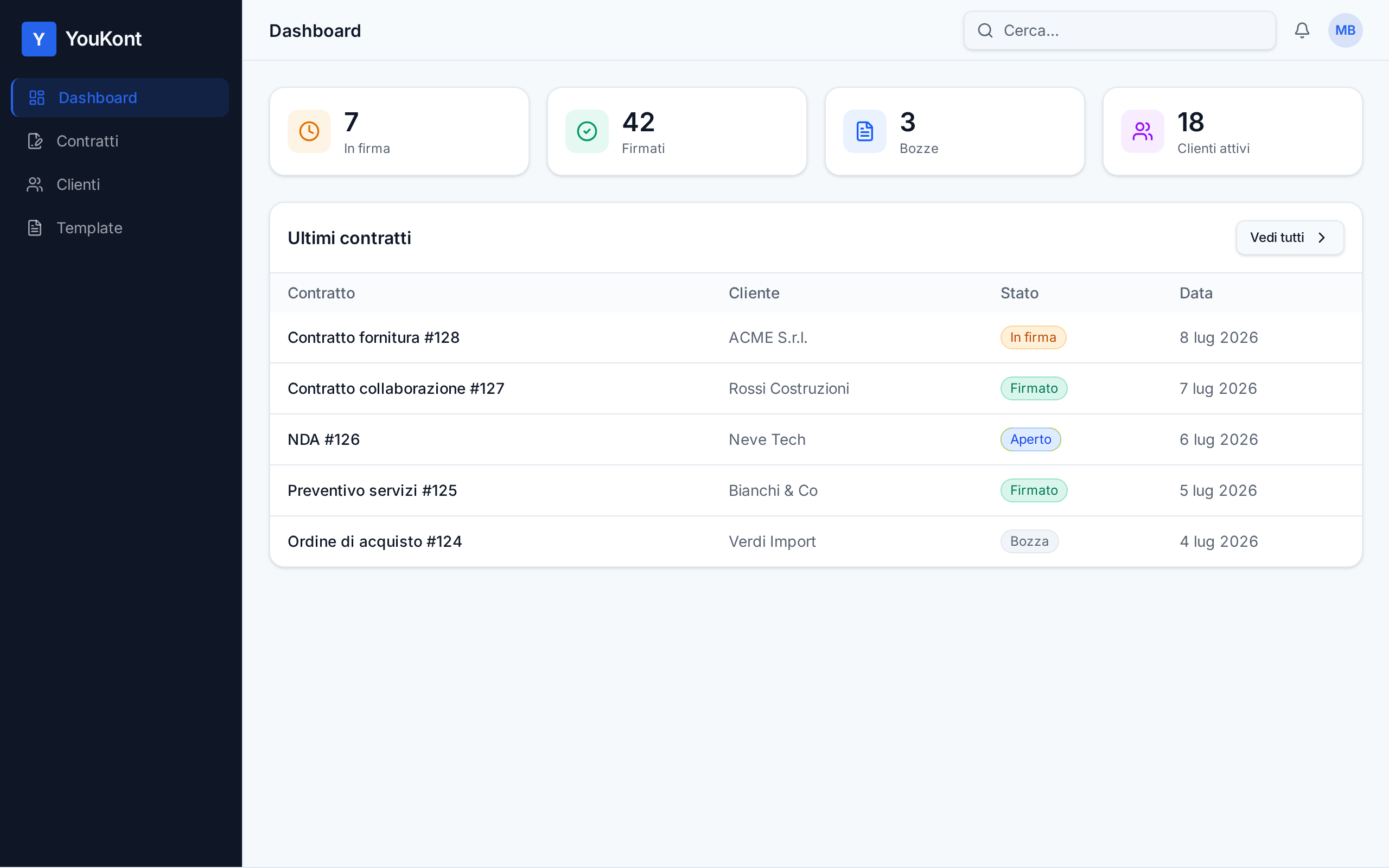
Sign in to YouKont with your email and password. The dashboard shows a summary of contracts in draft, out for signature and signed.
From here you can start in two ways: create a new contract from the Contracts menu, or open a customer record and send directly from there.
If you work often with the same customers, opening the customer record before generating the contract saves time: their data is pre-filled automatically.
Check the template you'll use
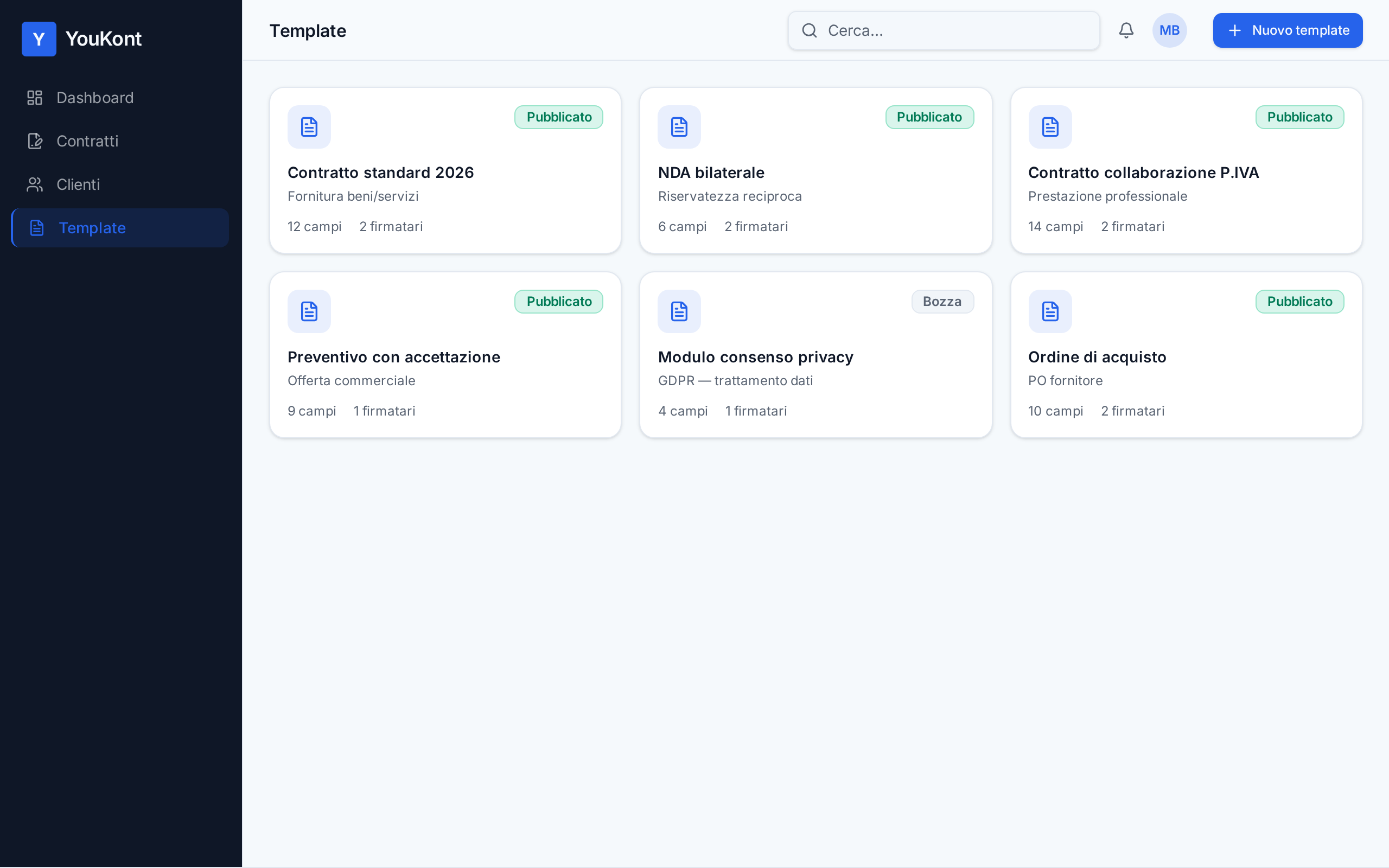
Open Templates from the side menu and confirm the template you want to use is published (not a draft). Only published templates show up when creating a new contract.
If you need to update it (extra fields, more signers), edit it before starting the send: changes won't affect already-signed contracts, only those generated from now on.
Create a new contract
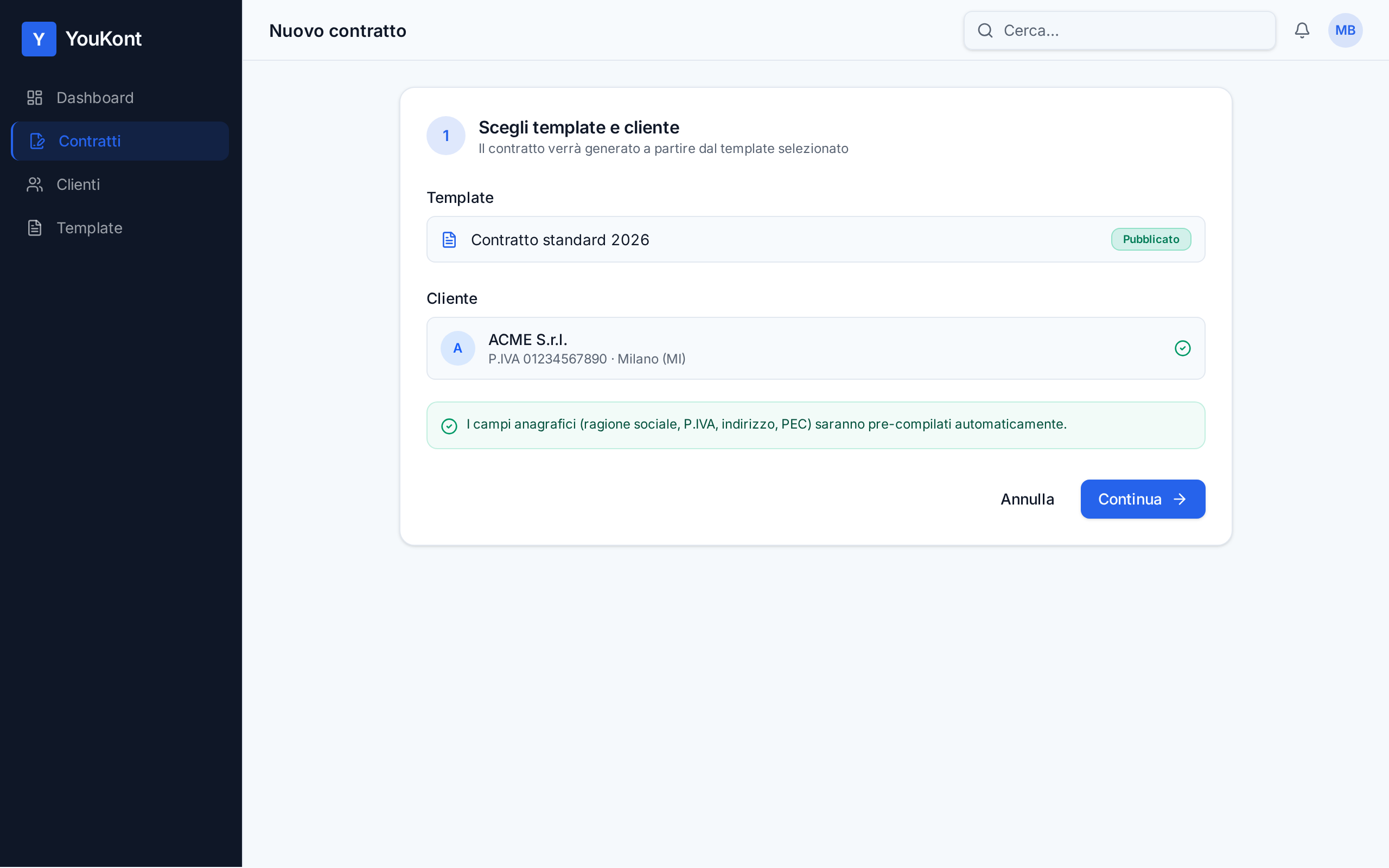
Click Contracts → New contract. You'll be asked to pick the template and the customer.
As soon as the customer is selected, YouKont auto-fills every field linked to their record (company name, VAT, address), so you don't have to retype them.
Fill in the dynamic fields
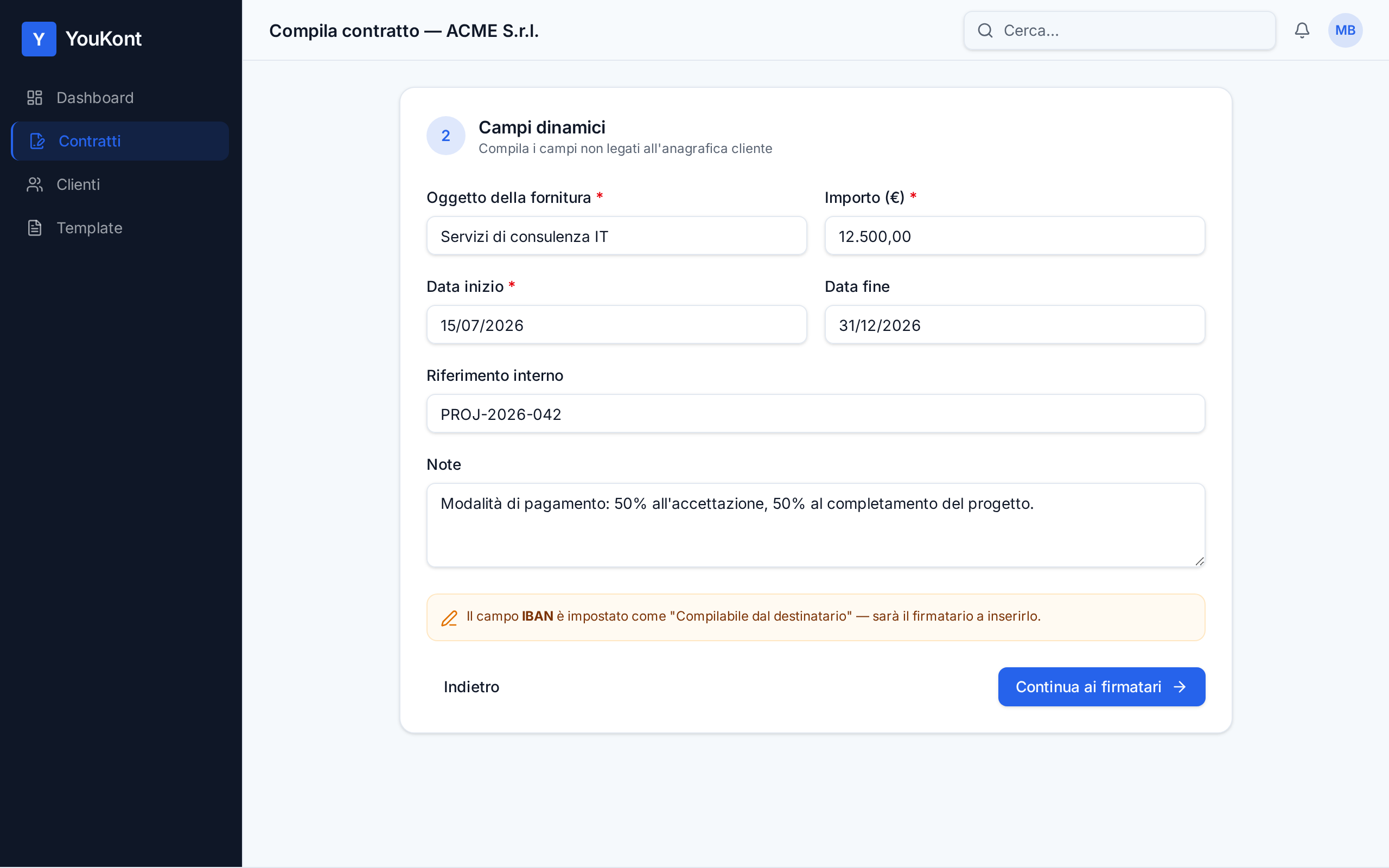
Fill in the fields that aren't tied to the customer record: amount, subject, dates, internal references, etc.
Required fields are highlighted: until they are all completed, the send-for-signature button stays disabled.
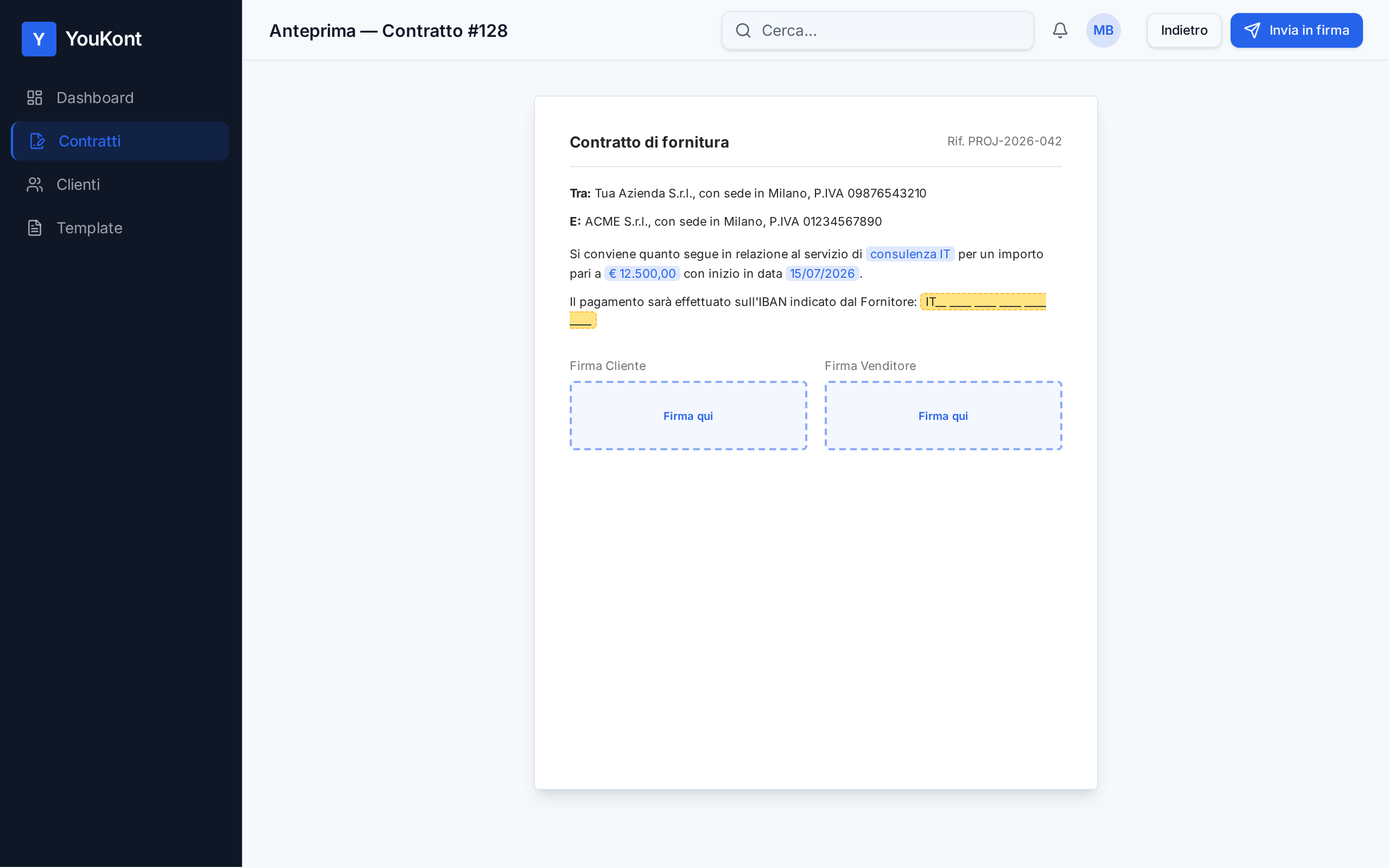
You can leave some fields empty and mark them "Recipient-fillable" in the template: the signer will fill them in before signing (e.g. IBAN, pickup date).
Add signers
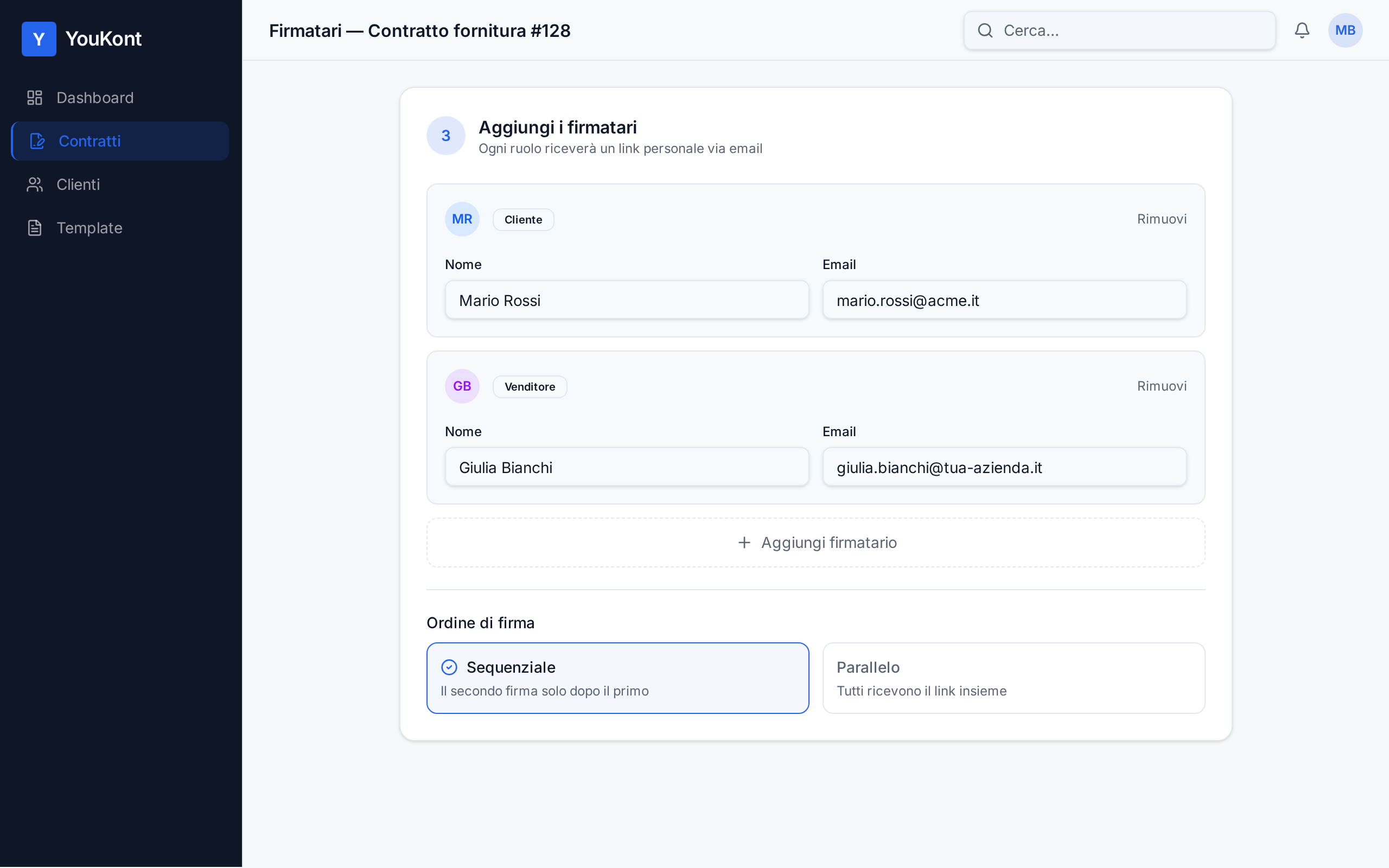
In the signers panel enter name and email for every signer role defined in the template (e.g. Customer, Seller, Witness). Each role is a different person that will receive their own link.
If the template has multiple signer roles, you can choose the order: sequential (the second signs only after the first) or parallel (everyone gets the link at the same time).
Customize the email message
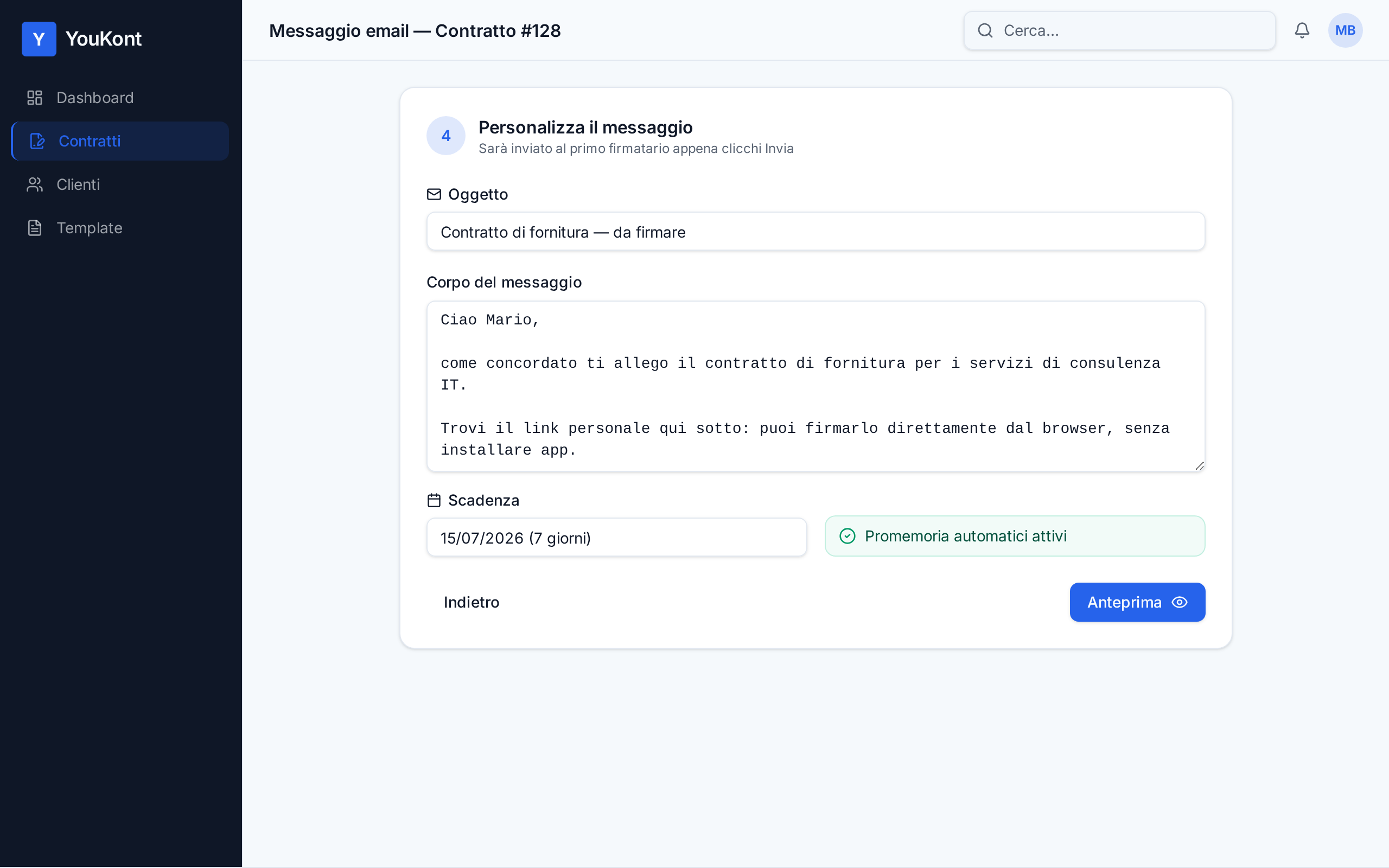
Subject and body of the email the signer will receive are pre-filled with a template, but you can customize them: add a greeting, a reference to a quote, a specific instruction.
You can also set a deadline (e.g. 7 days) and enable automatic reminders: YouKont sends a nudge to the signer if they haven't signed yet.
A personal message boosts the signing rate a lot. Even just "Hi Marco, as agreed here is the contract" changes perception versus the default text.
Preview and send
Click Preview to see the PDF exactly as the recipient will receive it: all filled fields, recipient-fillable fields highlighted, signature areas ready.
If everything looks right, go back and press Send for signature. The contract moves to "Out for signature" and the email is sent to the first signer.
What the signer sees
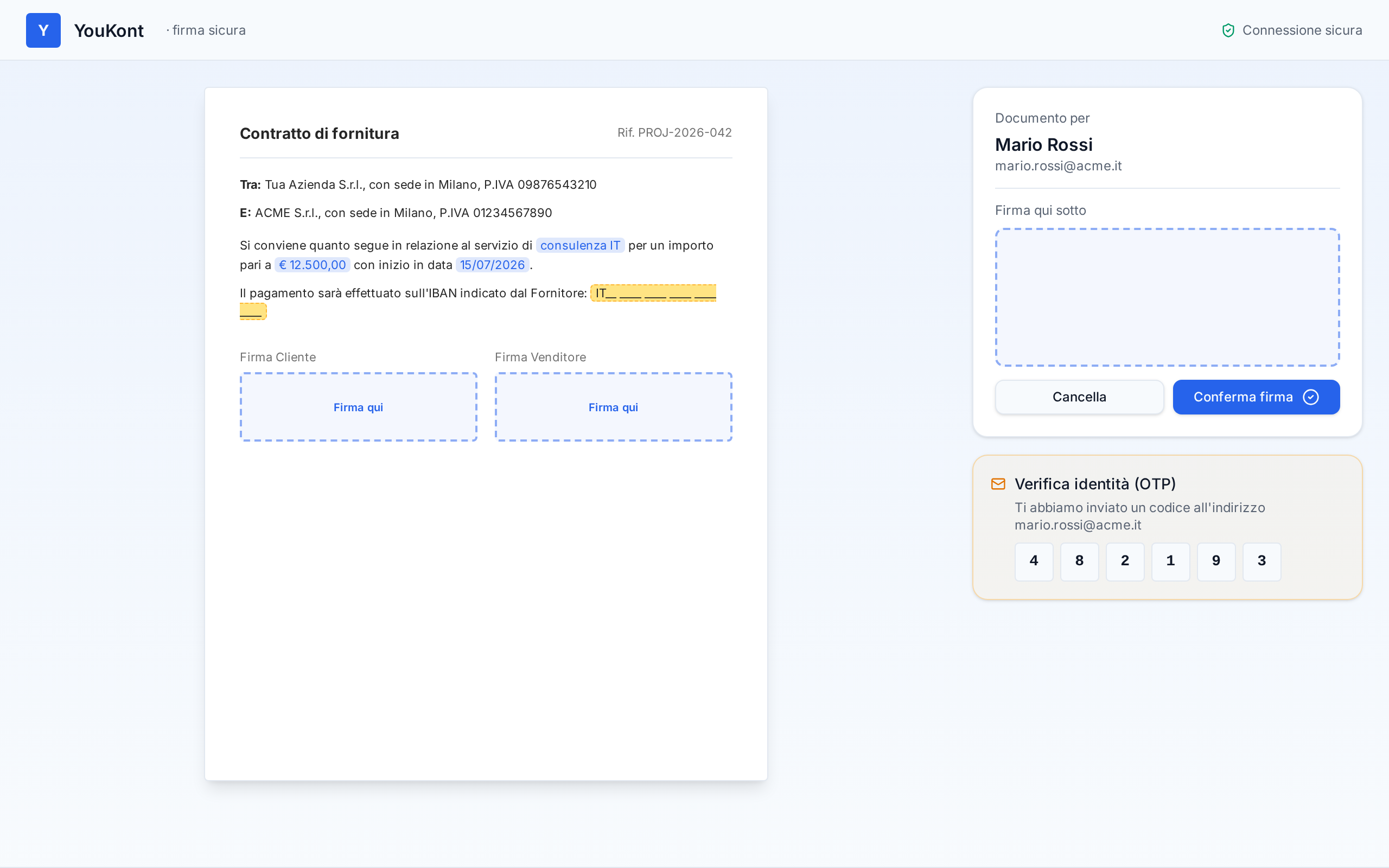
The recipient gets an email with a "Sign the document" button. Clicking it opens the contract directly in the browser — no registration, no app to install.
They fill in the fields you left, sign with finger (on phone/tablet) or mouse (on desktop) and confirm. YouKont asks for an OTP verification code sent to the same email, to prove identity.
The signing link is personal and only valid for that signer. If they lose it, they can request a new send: the old link is invalidated automatically.
Track the status in real time
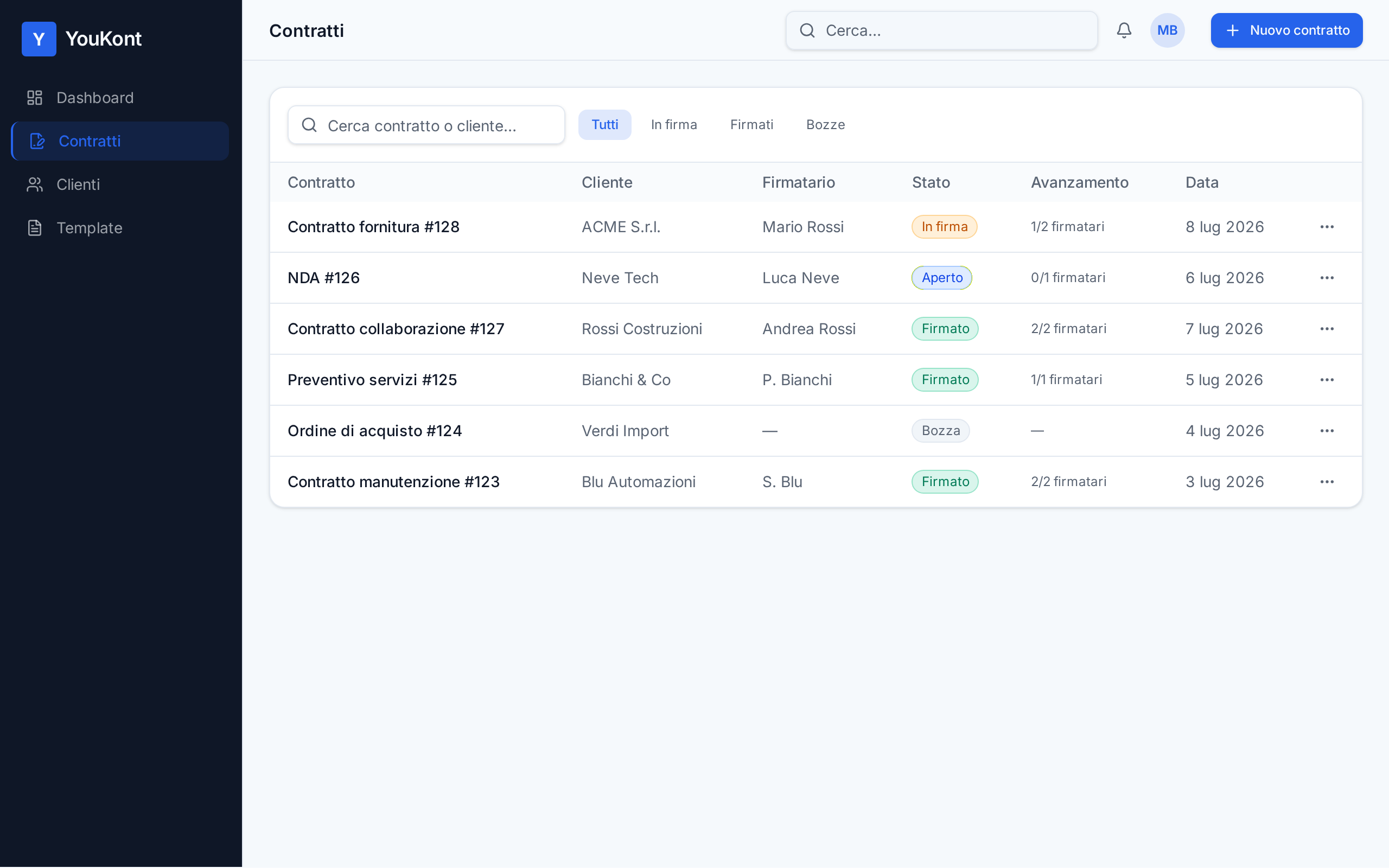
Back on the dashboard: the contract shows the updated status (Sent → Opened → Signed). You get an email notification on every status change.
If the signer hasn't opened or signed yet, you can resend the link, change their email or cancel the send from the contract actions menu.
Download the signed PDF with audit trail
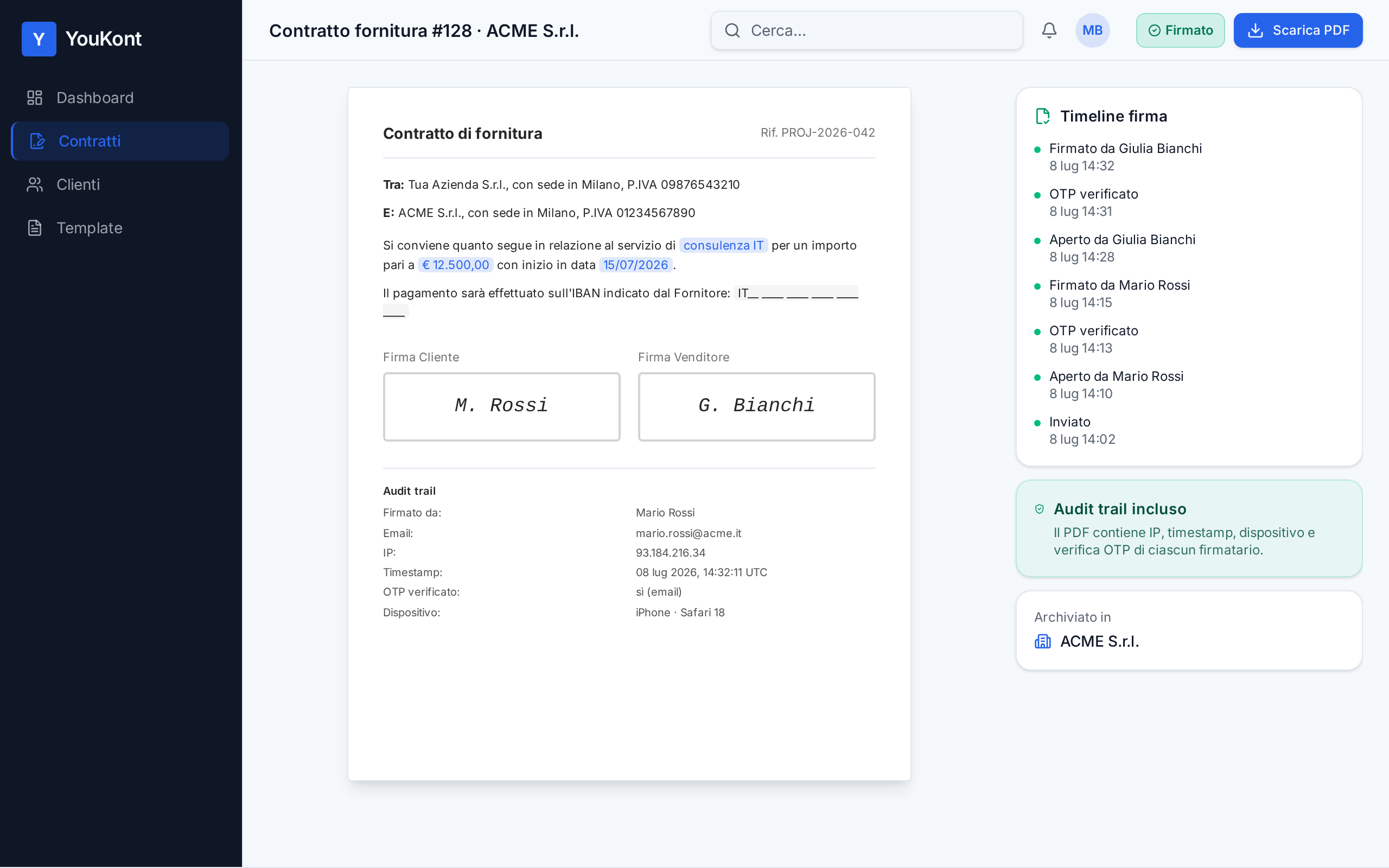
When every signer has signed, the contract moves to "Signed" and the recipient also gets a notification with the PDF attached.
From the contract page you can download the signed PDF: it contains the graphic signatures and, in appendix, the audit trail (IP address, timestamp, device, OTP verification) that certifies its integrity and guarantees legal value.
Best practices
Always personalize the email message
A message written for the specific customer has a much higher signing rate than the default template. Two lines of context are enough.
Set a realistic deadline
7 days is a good compromise: long enough to sign without forgetting, short enough not to leave the contract hanging forever.
Use sequential signing when order matters
If the seller must countersign only after the customer accepts, use sequential order. It prevents two signatures on different versions of the text.
Double-check the email before sending
A typo in the signer's email is the #1 reason contracts get stuck. Reread address and name before pressing Send.
Common issues
The signer says they didn't receive the email
Ask them to check Spam / Junk (especially on corporate domains). From the contract page you can resend the link or change the email address and resend.
The "Send for signature" button is disabled
That means a required field is missing or a signer's email is empty. Scroll the form: missing fields are highlighted in red.
The signer signed but got a field wrong
A signed contract is legally immutable: you can't edit its text. Cancel it and create a new one from the correct template — it only takes seconds.
The OTP code doesn't reach the signer
The OTP is sent to the same email the link arrived at. If it doesn't come, the signer can click "Resend code" on the signing page. Alternatively, cancel and resend the whole contract.
Frequently asked questions
Does the signer need a YouKont account to sign?
No. The signer opens the link they got by email, signs directly in the browser and confirms with an OTP code. No registration, no app to install.
Can I have multiple people sign the same contract?
Yes. Just make sure the template has multiple signer roles mapped. At send time enter one email per role and choose sequential or parallel signing.
How legally valid is the signature collected on YouKont?
YouKont applies a Simple Electronic Signature (SES) compliant with the EU eIDAS regulation, with an audit trail (IP, timestamp, device, OTP verification) attached to the signed PDF. It is valid in court across the EU.
Can I cancel a contract that has been sent but not signed yet?
Yes, any time before the signer has completed the signature. The link is invalidated and the contract moves to "Cancelled".
Can I be notified when the signer opens or signs?
Yes. Email notifications are enabled by default for every status change: Sent, Opened, Signed, Rejected. You can turn them off in user preferences.
Does the signer get a copy of the signed PDF?
Yes. As soon as the contract is complete, both you and the signer receive a confirmation email with the signed PDF attached, including the audit trail.
Can I send a contract without using a template?
No: on YouKont every contract starts from a published template. If your document doesn't have a template yet, map it first following the dedicated guide.
Ready to get your first contract signed?
Try YouKont free — no credit card required. In a few minutes you'll send your first contract for signature and get the signed PDF with audit trail.